LED Modes & Customization
Understand Everything Presence Pro LED modes and customise the indicator behaviour for your installation.
The Everything Presence Pro features an RGB LED that can indicate presence status, environmental conditions, or be controlled manually for custom automations.
LED Modes
The Pro supports four LED modes, controlled via the LED Mode select entity in Home Assistant.
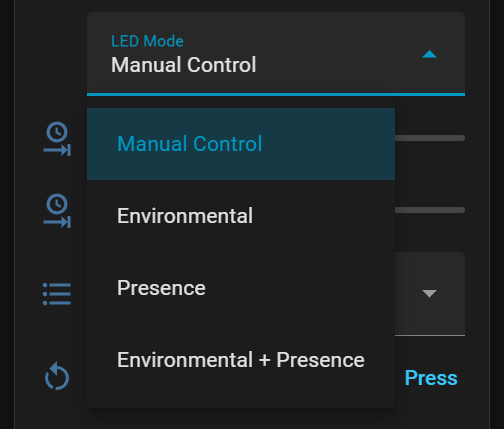
Manual Control Mode
The LED only responds to direct control via the LED light entity. Use this for:
- Custom automations
- Turning the LED off completely
- Static colour indicators
Presence Mode
The LED automatically indicates presence status:
| State | Colour |
|---|---|
| Room occupied | Purple/Magenta (soft glow) |
| Room empty | Off |
Environmental Mode
The LED displays air quality based on CO2 levels (requires CO2 module):
| CO2 Level | Colour | Effect |
|---|---|---|
| < 800 ppm | Green | Steady glow (good) |
| 800-1200 ppm | Yellow | Slow pulse (moderate) |
| > 1200 ppm | Red | Fast pulse (poor) |
Without a CO2 module installed, this mode has no effect.
Environmental + Presence Mode
Combines both modes:
- Shows environmental colour when occupied
- Turns off when room is empty
Controlling the LED
Manual Control
When in Manual Control mode, control the LED via the LED light entity:
- Set any RGB colour
- Adjust brightness
- Turn on/off
# Example: Turn LED blue
service: light.turn_on
target:
  entity_id: light.pro_led
data:
  rgb_color: [0, 0, 255]
  brightness: 128
Brightness Adjustment
The LED Brightness number entity (0.1 to 1.0) acts as a multiplier for automatic modes:
- Higher values = brighter automatic colours
- Set to minimum (0.1) to dim the LED in automatic modes
- Does not affect manual mode brightness
Common Use Cases
Turn LED Off Completely
- Set LED Mode to "Manual Control"
- Turn off the LED light entity
Or use this automation:
service: select.select_option
target:
  entity_id: select.pro_led_mode
data:
  option: "Manual Control"

service: light.turn_off
target:
  entity_id: light.pro_led
Visual Doorbell/Alert
Flash the LED when someone rings the doorbell:
automation:
  trigger:
    - platform: state
      entity_id: binary_sensor.doorbell
      to: "on"
  action:
    - repeat:
        count: 5
        sequence:
          - service: light.turn_on
            target:
              entity_id: light.pro_led
            data:
              rgb_color: [255, 165, 0]
              brightness: 255
          - delay:
              milliseconds: 200
          - service: light.turn_off
            target:
              entity_id: light.pro_led
          - delay:
              milliseconds: 200
Room Status Indicator
Use different colors for different states:
automation:
  trigger:
    - platform: state
      entity_id: binary_sensor.pro_occupancy
  action:
    - choose:
        - conditions:
            - condition: state
              entity_id: binary_sensor.pro_occupancy
              state: "on"
          sequence:
            - service: light.turn_on
              target:
                entity_id: light.pro_led
              data:
                rgb_color: [0, 255, 0]
        - conditions:
            - condition: state
              entity_id: binary_sensor.pro_occupancy
              state: "off"
          sequence:
            - service: light.turn_on
              target:
                entity_id: light.pro_led
              data:
                rgb_color: [255, 0, 0]
LED Behaviour Reference
During Boot
The LED shows a cyan colour briefly during device start-up while connecting to Home Assistant.
Troubleshooting
LED Not Responding
- Check the LED Mode is set to "Manual Control" for direct control
- Verify the entity is available in Home Assistant
- Try restarting the device
Automatic Colours Not Showing
- Ensure LED Mode is set to an automatic mode
- Check LED Brightness is not set to minimum
- For Environmental mode, verify CO2 module is installed and working
LED Too Bright/Dim
Adjust the LED Brightness entity (0.1 to 1.0) to set the intensity for automatic modes.