Enable Ethernet & Optional Features
Enable Ethernet and optional features on Everything Presence Pro. Follow the firmware configuration guide for your chosen setup.
After setting up your Pro via WiFi, you can enable additional features like Ethernet/PoE connectivity, CO2 monitoring, or Bluetooth proxy - all from Home Assistant without needing a computer.
Available Options
| Option | What It Does |
|---|---|
| Ethernet Mode | Switch from WiFi to wired Ethernet/PoE for more reliable connectivity |
| CO2 Sensor | Enable support for the optional CO2 module |
| Bluetooth Proxy | Turn your Pro into a Bluetooth range extender for Home Assistant |
How to Enable Features
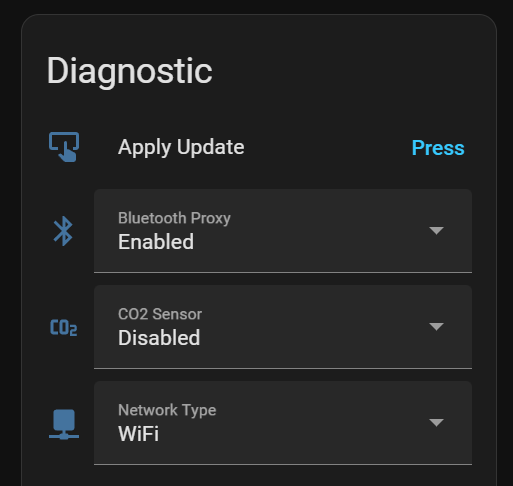
- In Home Assistant, go to Settings → Devices & Services → ESPHome
- Click on your Pro device
- Find the Configuration entities:
- Network Type - Select WiFi or Ethernet
- CO2 Sensor - Enable or Disable
- Bluetooth Proxy - Enable or Disable
- Set your desired options
- Click the Apply Update button
- Wait for the device to download and apply the changes (1-2 minutes)
- The device will restart with the new configuration
Warning
Before enabling Ethernet: Make sure you have an ethernet cable connected before applying the update, otherwise you'll lose connectivity and need to reflash via USB.
Switching to Ethernet/PoE
Ethernet with Power over Ethernet (PoE) is recommended for permanent installations - a single cable provides both power and reliable data.
To switch:
- Connect an ethernet cable from your PoE switch to the Pro
- Change Network Type to "Ethernet"
- Click Apply Update
- Once restarted, you can disconnect the USB-C power
Enabling the CO2 Sensor
If you have the optional CO2 module installed:
- Set CO2 Sensor to "Enabled"
- Click Apply Update
- After restart, CO2 entities will appear in Home Assistant
Enabling Bluetooth Proxy
Turn your Pro into a Bluetooth proxy to extend range for other BLE devices:
- Set Bluetooth Proxy to "Enabled"
- Click Apply Update
- Your Pro will now relay Bluetooth signals to Home Assistant
Info
Bluetooth proxy adds some processing overhead. Only enable if you need extended Bluetooth range.
Recovering from Connection Loss
If you switch to Ethernet without a cable connected (or have other issues):
See Restore or Update your Pro to factory settings for detailed instructions.
Checking Current Settings
The current settings are shown as diagnostic entities:
- Network Type - Shows WiFi or Ethernet
- CO2 Sensor - Shows if CO2 features are enabled
- Bluetooth Proxy - Shows if Bluetooth proxy is enabled
These show what's currently running, not what you've selected for the next update.