Restore or Update your EP1 to factory settings using a computer
Restore or update Everything Presence One firmware from your computer using the web installer. Choose your options and follow the connection instructions.
A factory reset erases the information and settings on your EP1 and installs the latest build of ESP-Home for your device.
Info
To restore your EP1 to factory settings, make sure you're using a browser that supports Web Serial, such as Google Chrome or Microsoft Edge.
What you need
- Mac or Windows PC
- USB C cable that you can plug into your device and into your computer
- Your device revision number
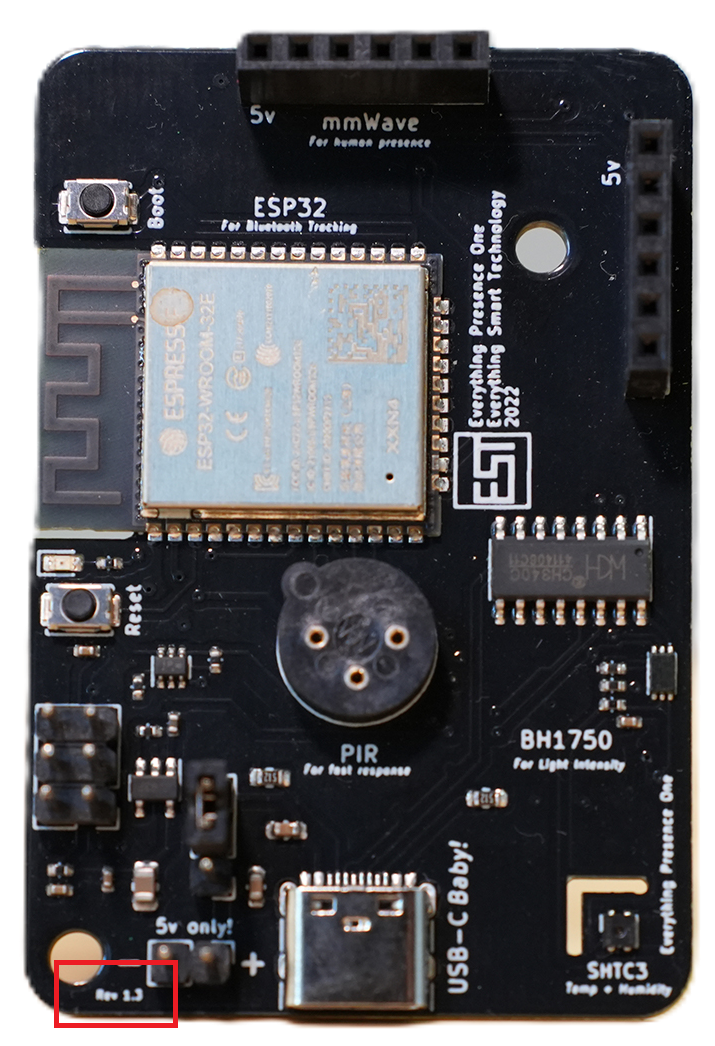
Restore Device
- Plug your EP1 device into your computer.
- On the panel below, select your device options (default: Home Assistant → DFRobot SEN0609 → No Add-on Module → Select Board Revision → Bluetooth Proxy → Stable).
- Click Connect, then select your device from the list of available serial ports.
- Wait for the flashing process to complete.
- Once finished, do not set up Wi-Fi. Instead, disconnect the device from your computer and plug it into its normal power source.
- Follow the steps in Set up your EP1 device in Home Assistant to complete the setup.
Restore Your Device Using the Web Tool
/flash/everything-presence-one.html
If you still need help
Choose the error or message that appears:
- Connect button does not appear on flashing page
- Failed to initialize. Try resetting your device or holding the BOOT button while clicking INSTALL.
- Preparing installation
If you're still unable to restore your EP1 to factory settings, contact us for further assistance. Get service, or join us on Discord to discuss with the community.