Set up your EPL device in Homey
Set up Everything Presence Lite in Homey. Follow the connection and configuration steps to get your presence sensor working.
Homey
Connect Everything Presence Lite (EPL) to Homey for presence and zone‑aware automations.
Info
Note This integration is for local Homey hubs only. Homey Cloud is not supported.
Prerequisites
- A powered EPL
- Homey hub and the Homey mobile app
Info
The Homey app uses the unencrypted ESPHome Native API on port 6053. If you have enabled API encryption on your device, the Homey app will not be able to connect. Disable encryption in your ESPHome configuration if you want to use Homey.
Install the Homey app
- Install the Everything Presence app on your Homey hub: https://homey.app/en-us/app/com.everything.presence/Everything-Presence/
Add your device
- Open the Homey app: Add device > search "Everything Presence" > select the app > choose "Everything Presence Lite".
New device (Bluetooth)
Tip
Select this if your device is brand new out of the box, or has just been factory reset.
- Choose "New device".
- Homey will scan for the device over Bluetooth, once discovered it will display a name like "everything-pr-xxxxxx"
- Select your EPL from the list.
- Enter your Wi‑Fi network name (SSID) and password.
- The app will look for your device on your network and finish adding it.
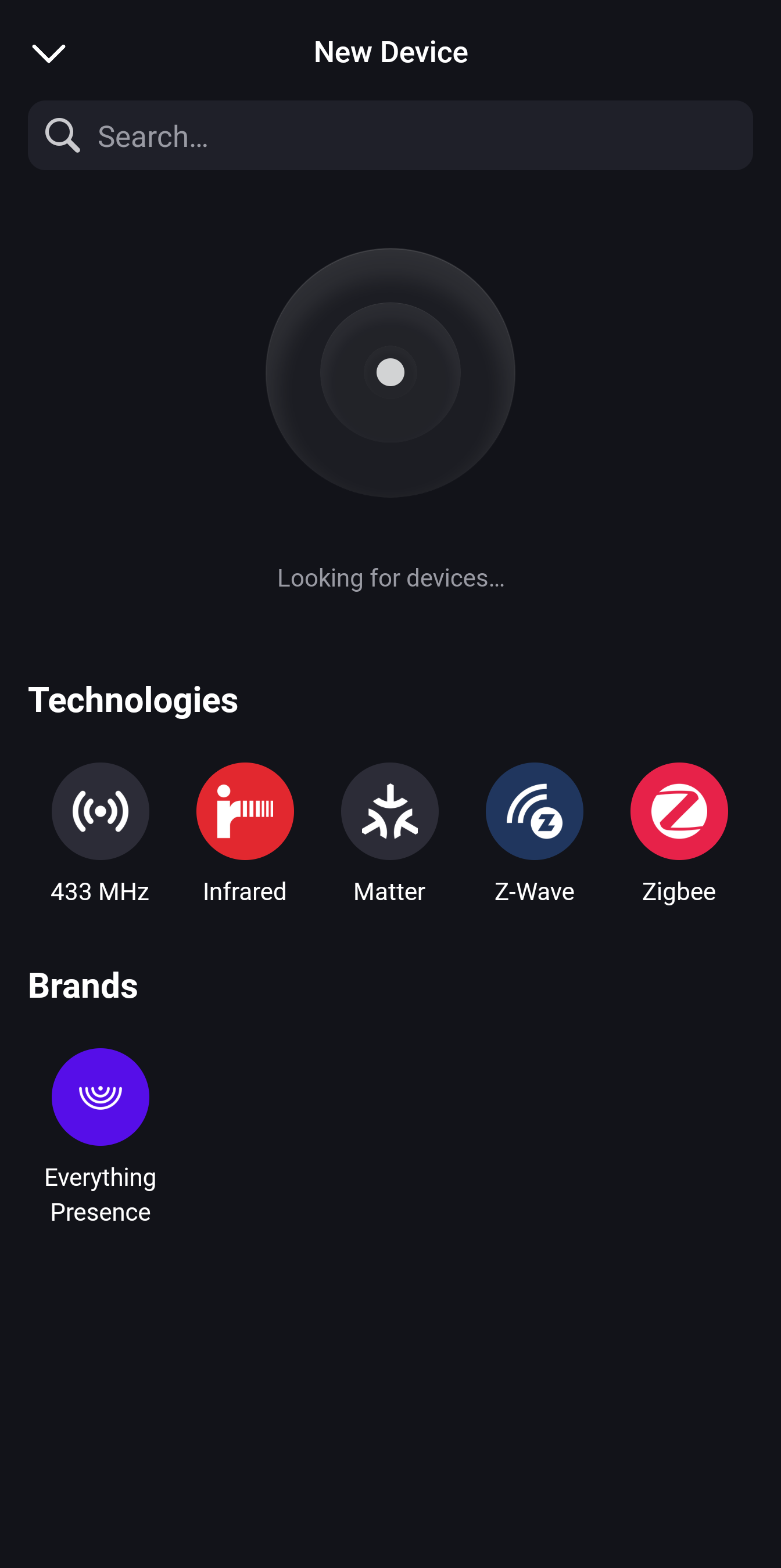 1. Add a new device, select the Everything Presence App |
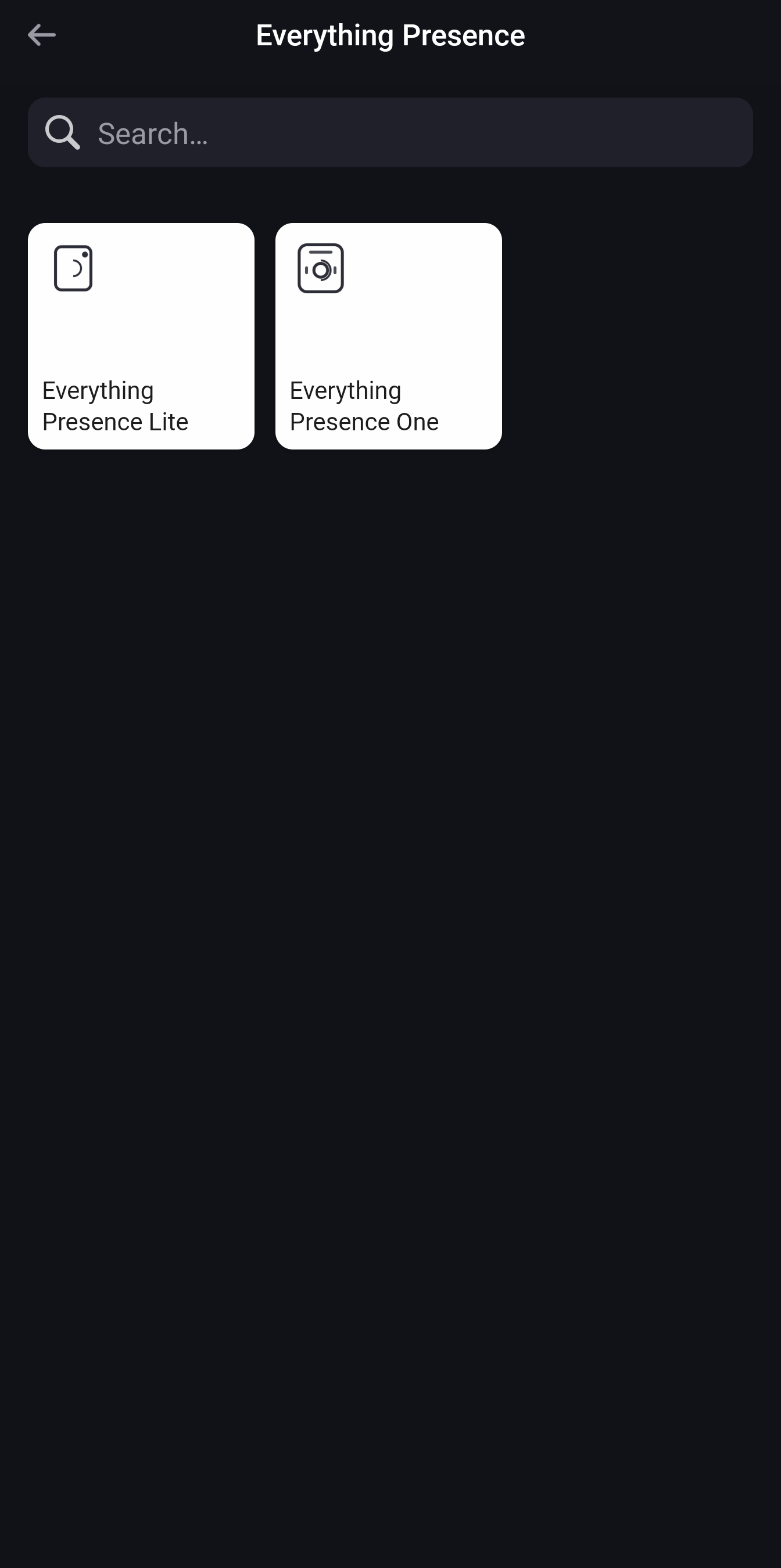 2. Select Everything Presence Lite |
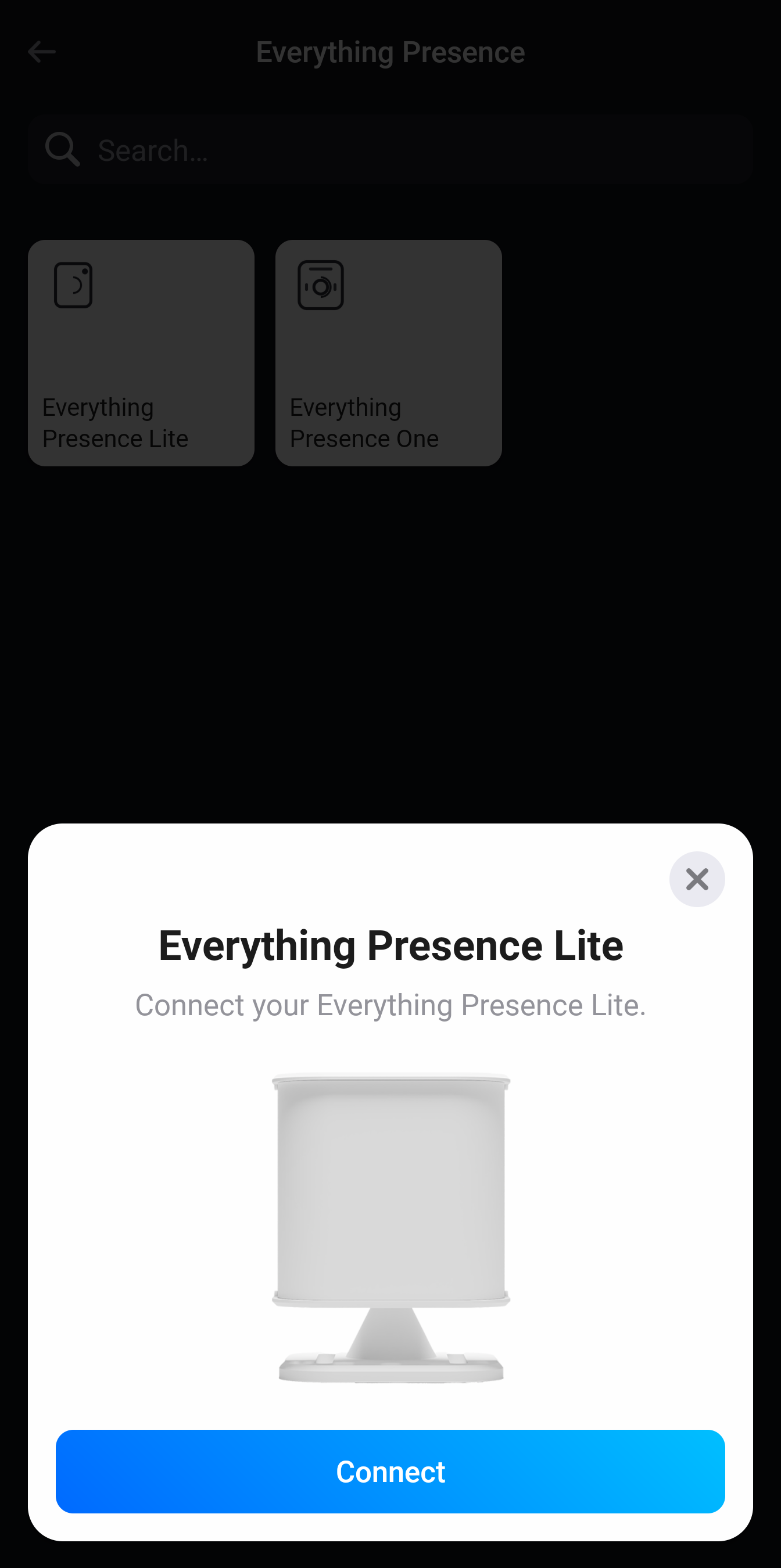 3. Hit Connect |
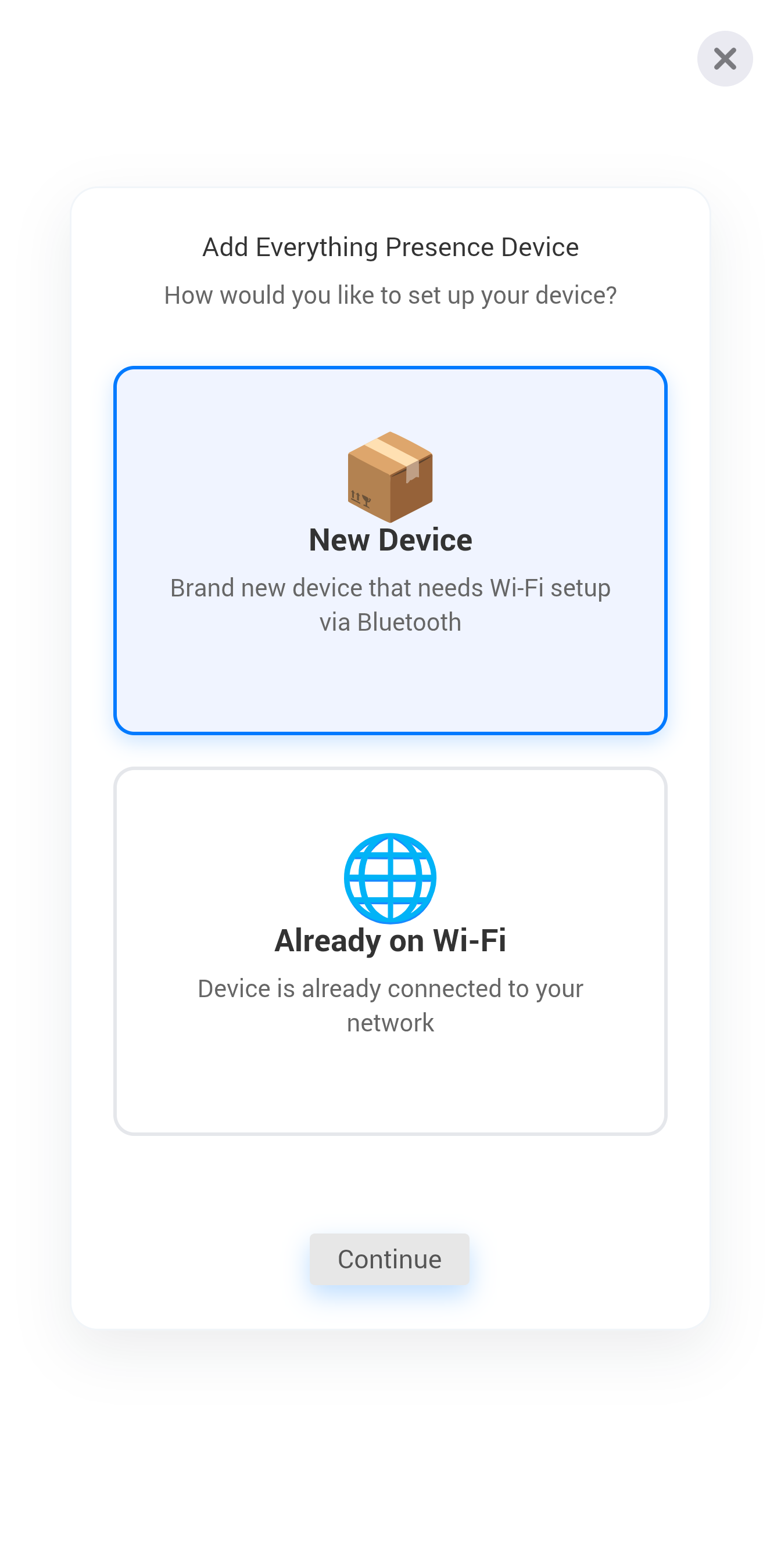 4. Select New Device |
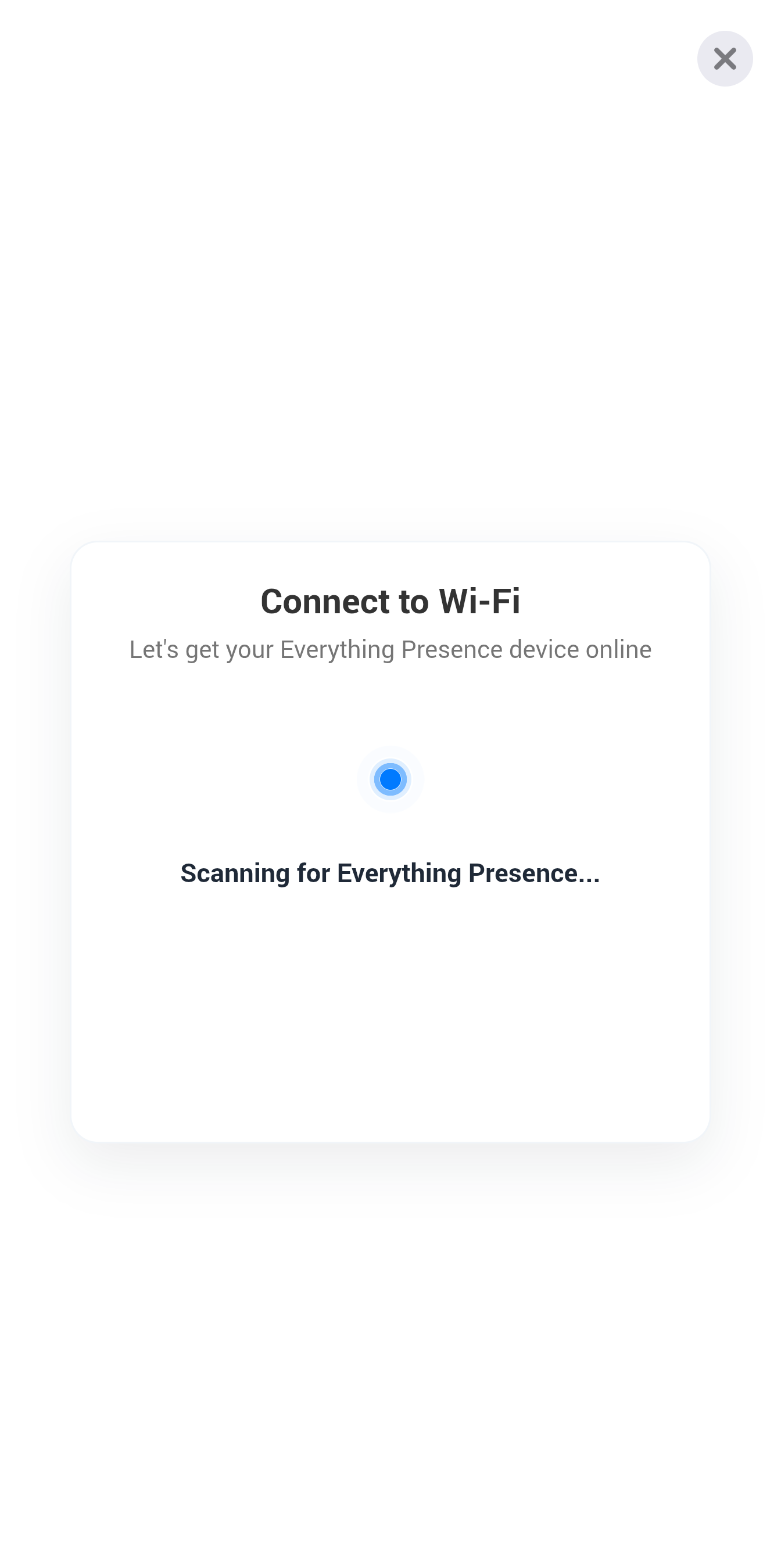 5. It will scan for any EPL nearby |
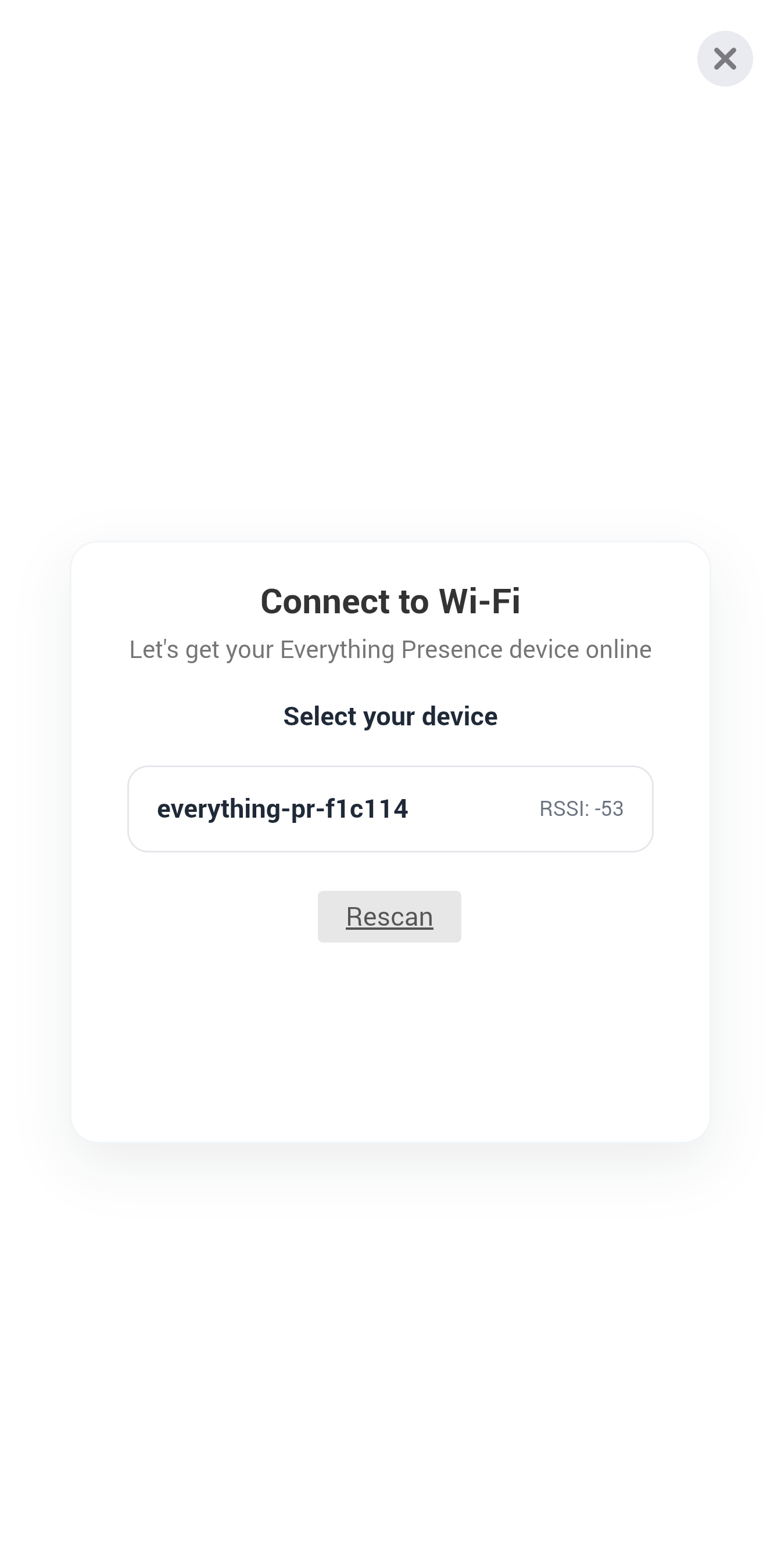 6. Select the discovered device |
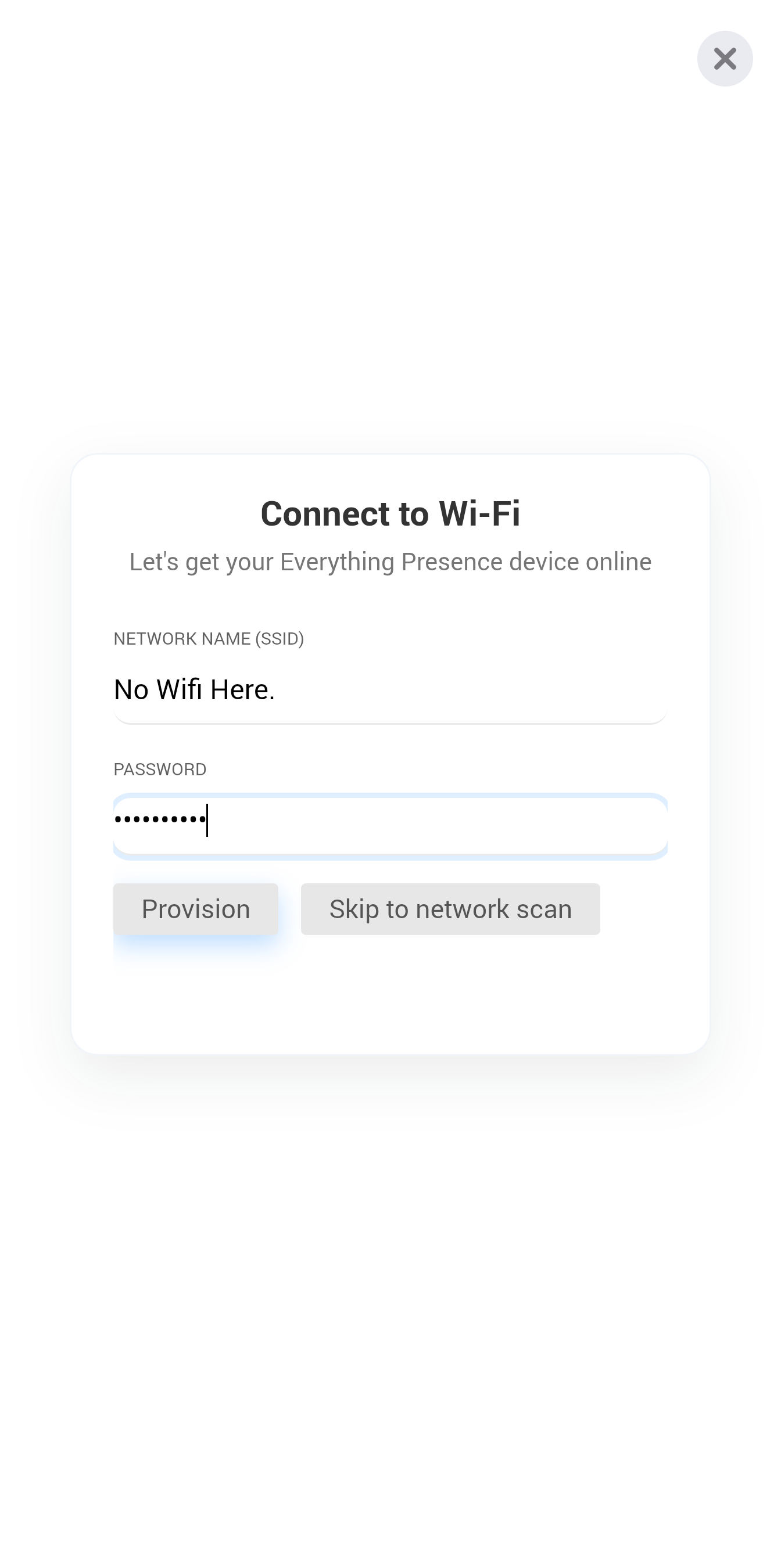 7. Enter your WiFi credentials |
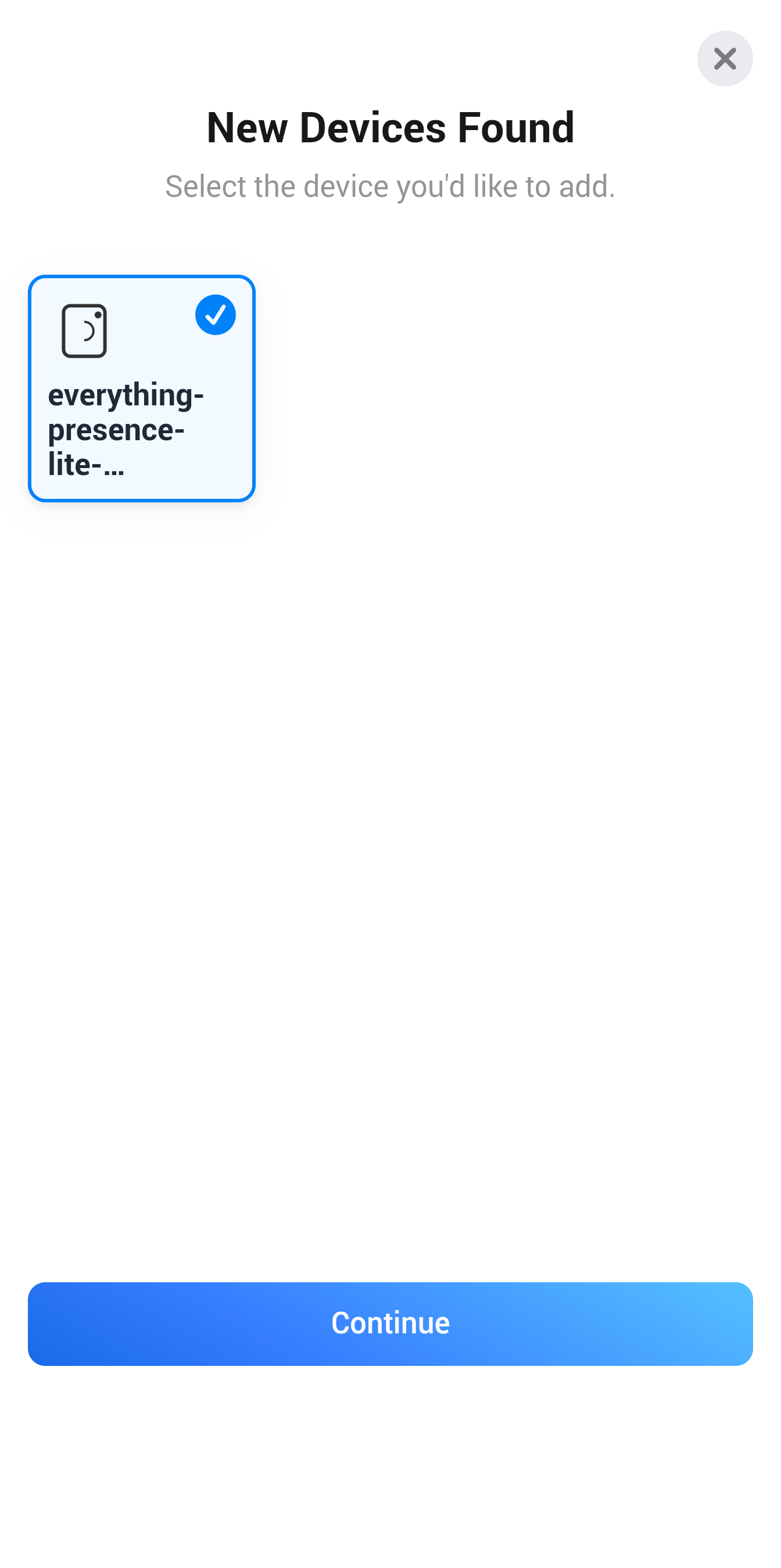 8. Device will connect to WiFi and can be added |
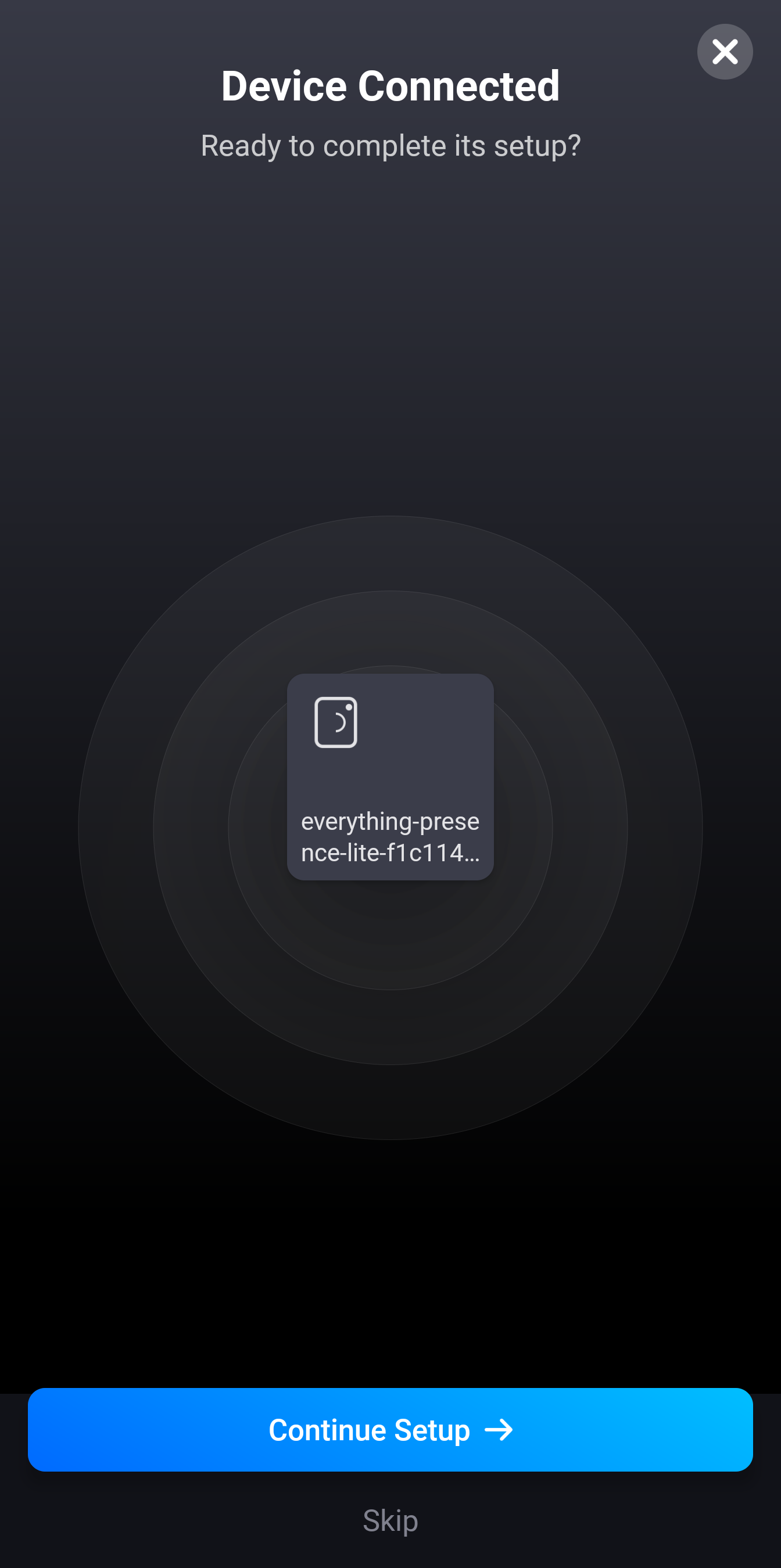 9. Complete! |
Already on Wi‑Fi (Network)
Tip
Select this if your device is already connected to WiFi and you are re-adding it to Homey.
- Choose "Already on Wi‑Fi".
- The app scans your network. Select your EPL from the list. If no device is found, you can enter the device's IP address manually.
- Finish adding the device and give it a name.
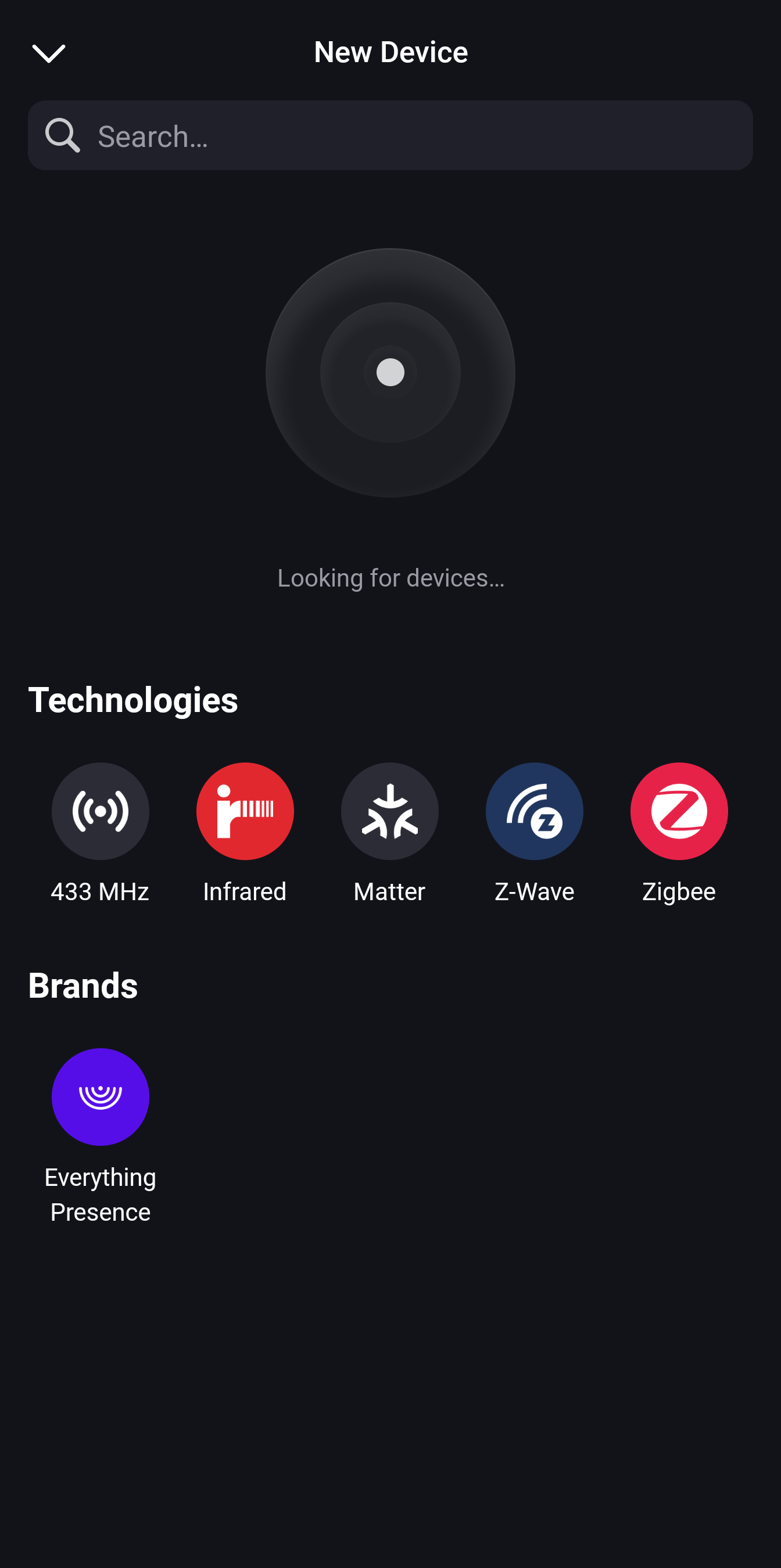 1. Add a new device, select the Everything Presence App |
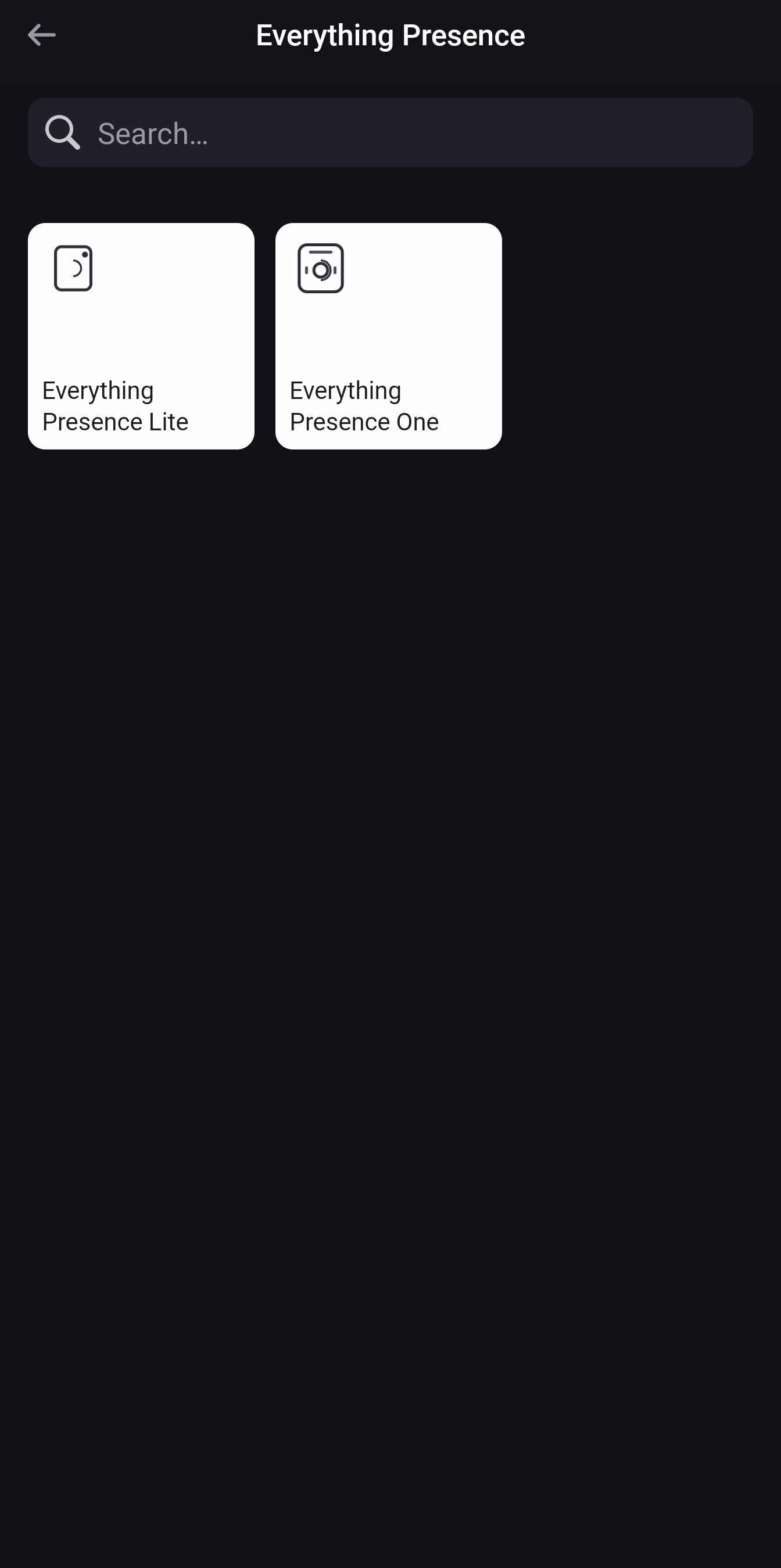 2. Select Everything Presence Lite |
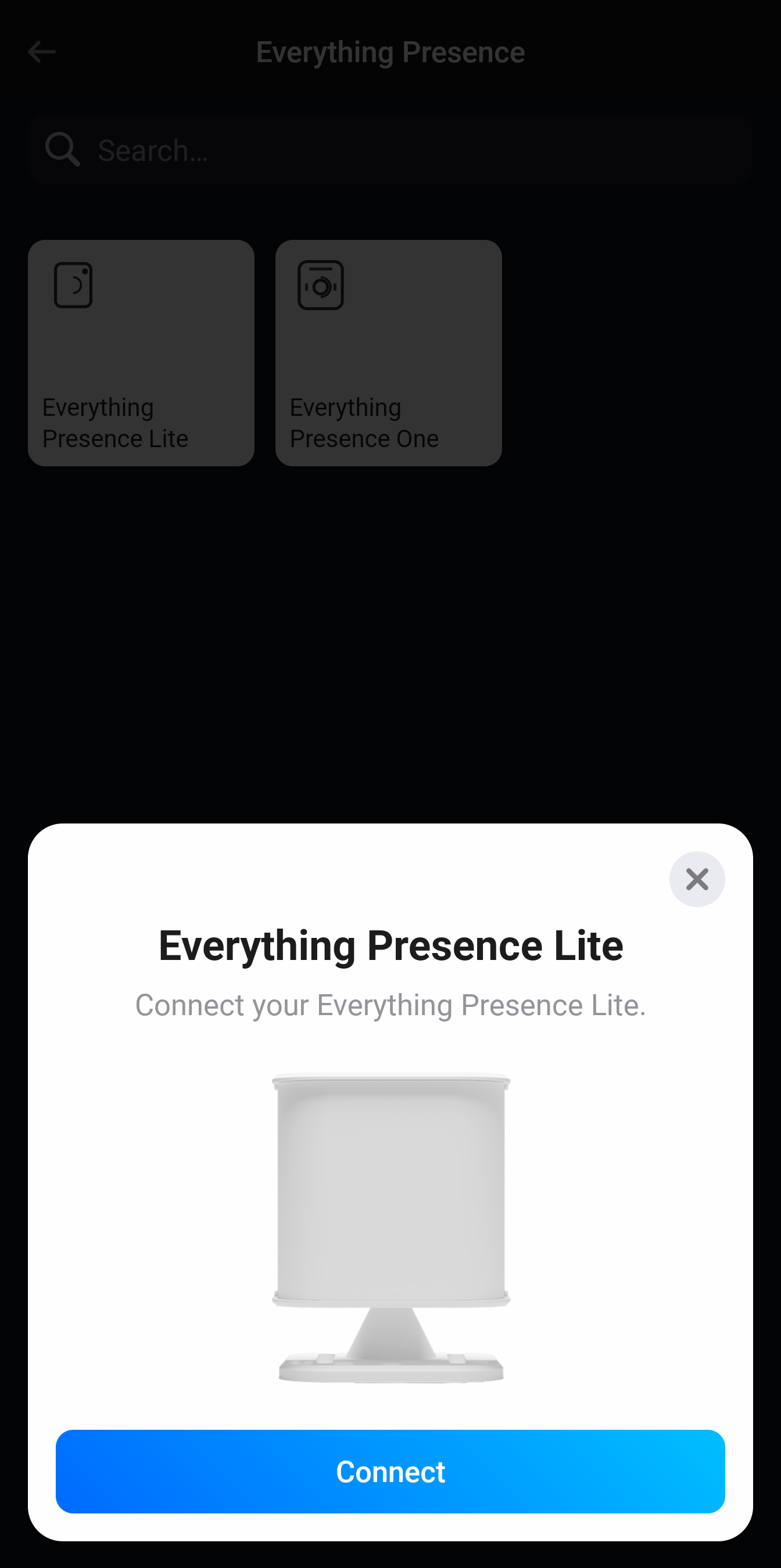 3. Hit Connect |
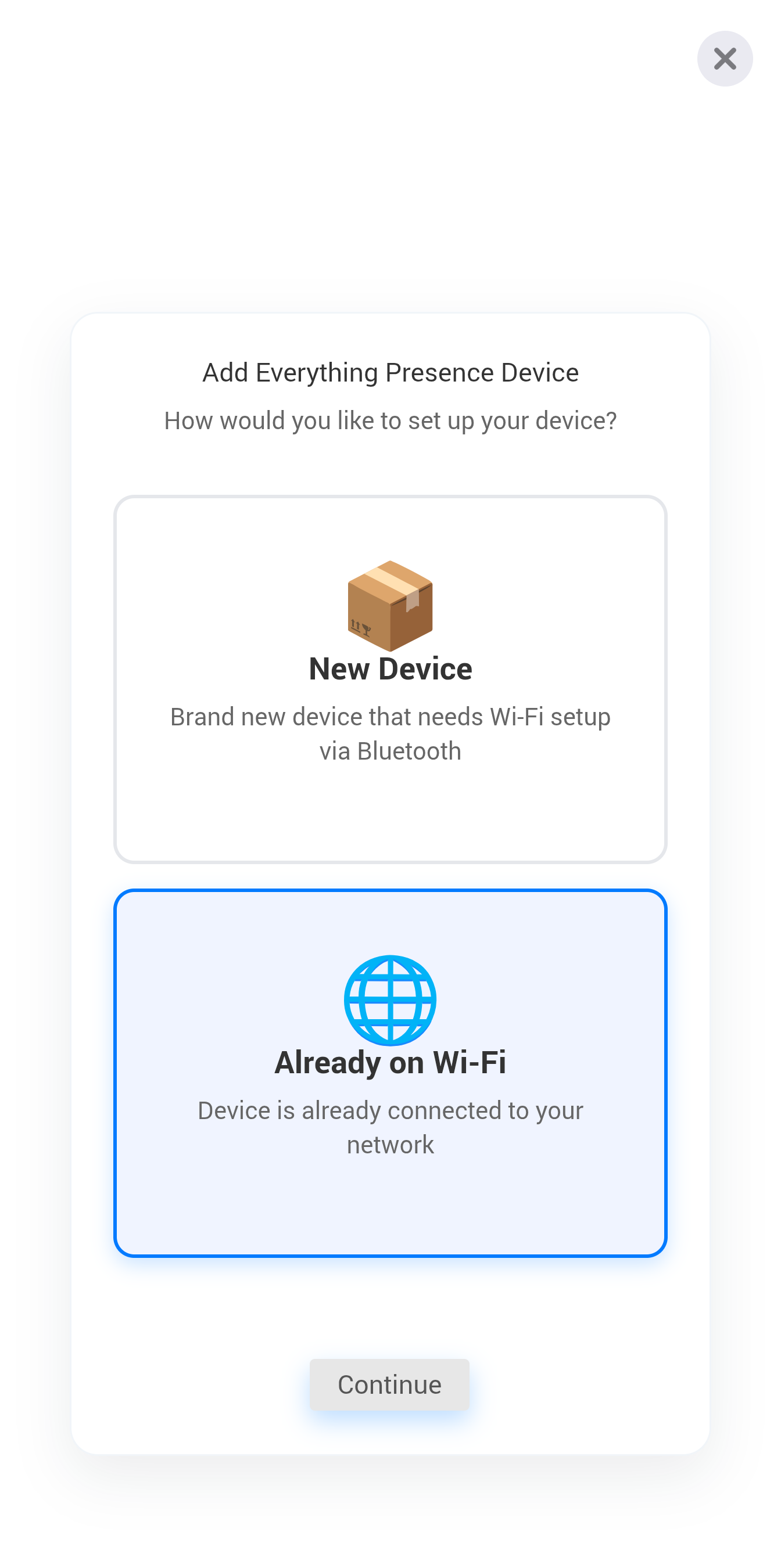 4. Select Already on WiFi |
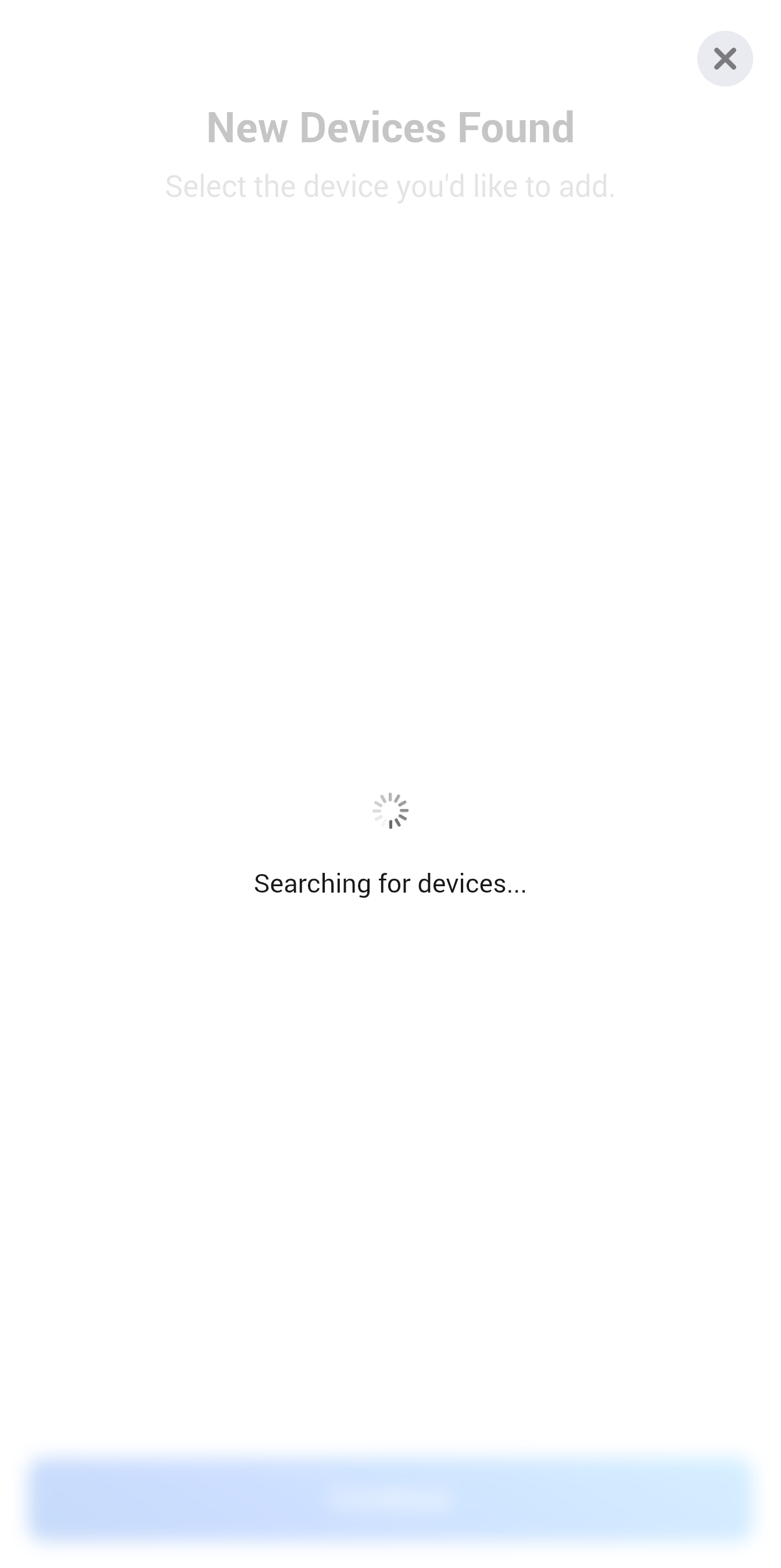 5. It will scan for any EPL connected on your network |
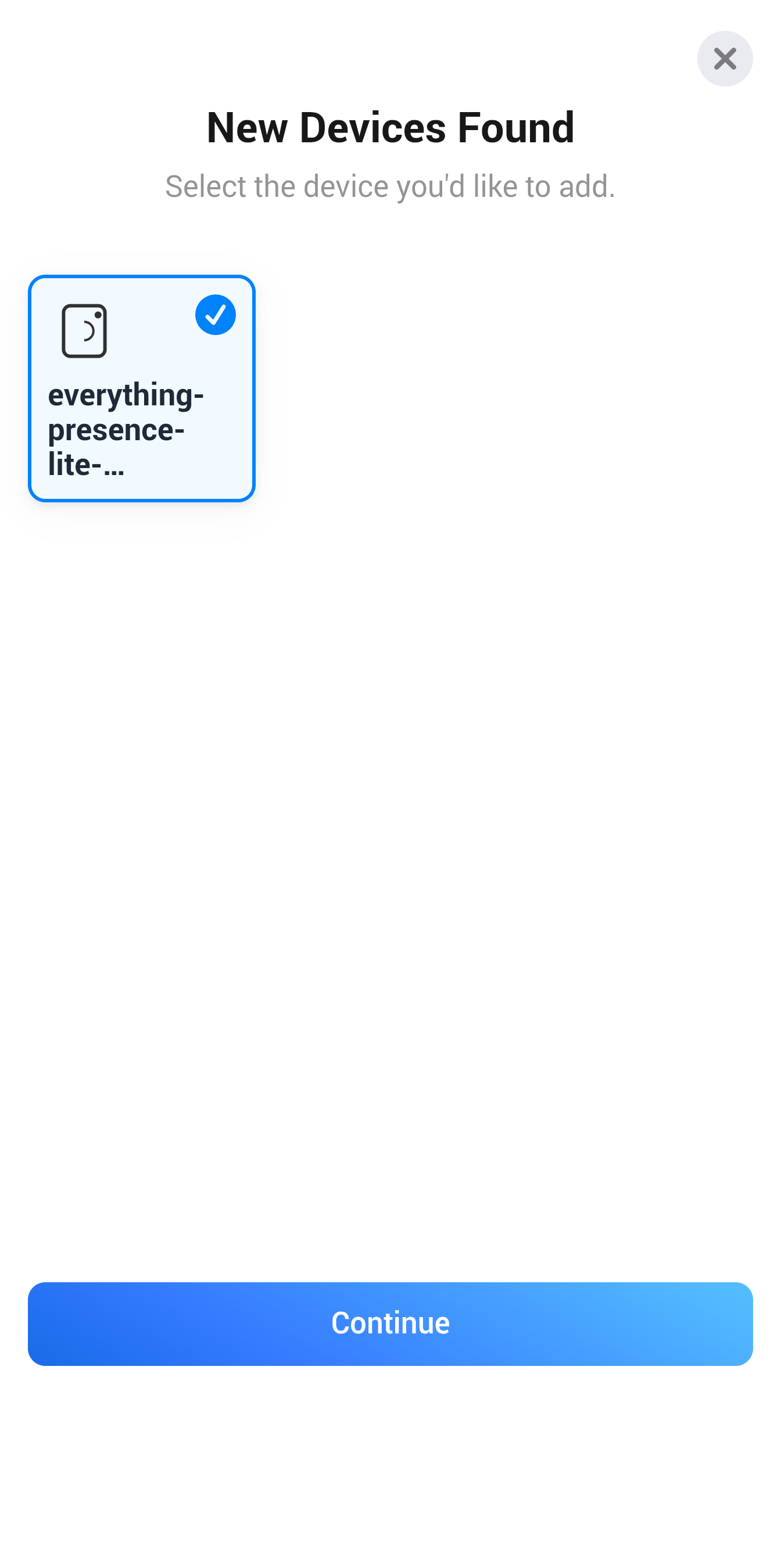 6. Select the discovered device and continue |
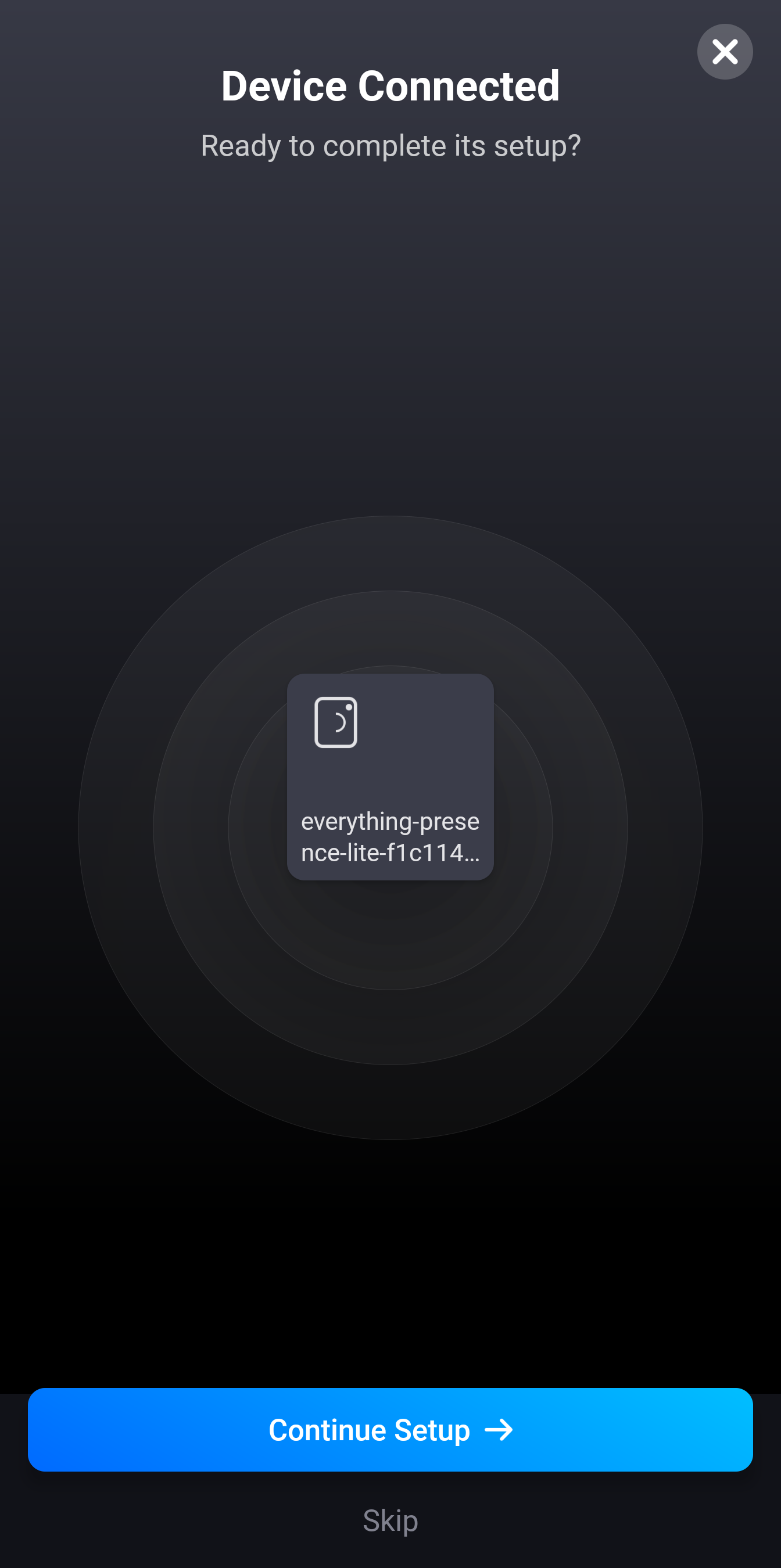 7. Complete! |
Verify
- Move in front of the sensor; Motion should toggle on.
- Light level should change with room lighting.
Troubleshooting
| Symptom | Likely cause | Fix |
|---|---|---|
| No devices found in Bluetooth scan (New device) | Device not advertising for Bluetooth setup or out of range | Move EPL closer to your Homey hub and retry Bluetooth setup; ensure the device is powered and ready for Wi‑Fi setup |
| No devices found on network (Already on Wi‑Fi) | Different network/subnet or device not connected yet | Ensure Homey and EPL are on the same network; wait 1–2 minutes after Wi‑Fi setup and rescan. If still not found, select the option to enter the IP address manually. |
Next steps
- Explore all Homey capabilities for EPL
If you still need help
If you're still having trouble tuning your device, contact us for further assistance. Join us on Discord to discuss with the community.